There are helpful reports that can be created in the explorations section under ‘Path Exploration’.
Google has a handy guide where you can read more about path explorations:
https://support.google.com/analytics/answer/9317498?hl=en
The first report we’re going to create is a conversion tracking report. This will show the behaviour flow of a user before they landed on the ‘thank you’ page.
Step 1
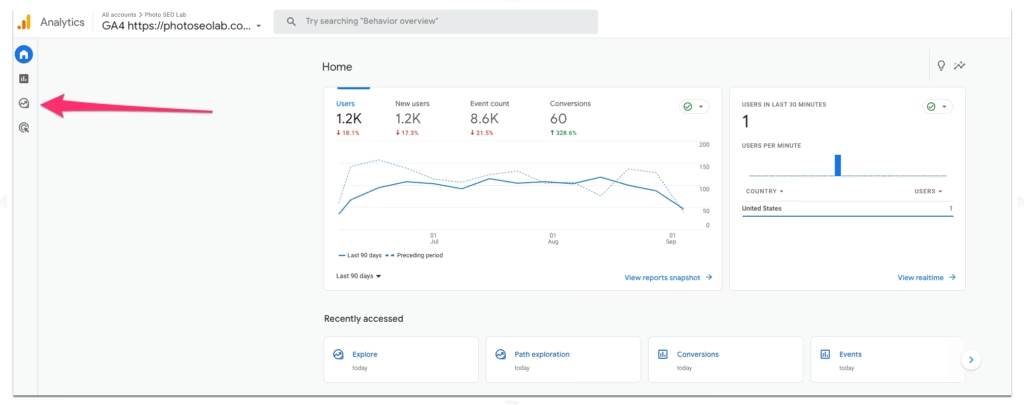
Head to the ‘explore‘ section
Step 2
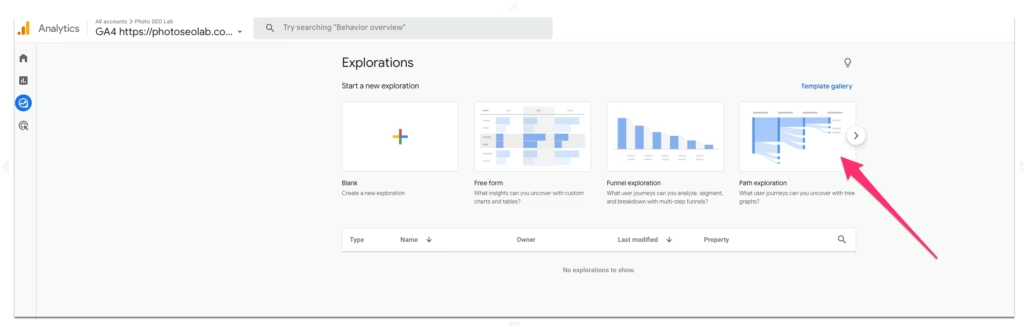
Within this section, click on the ‘path exploration‘ tile.
Step 3
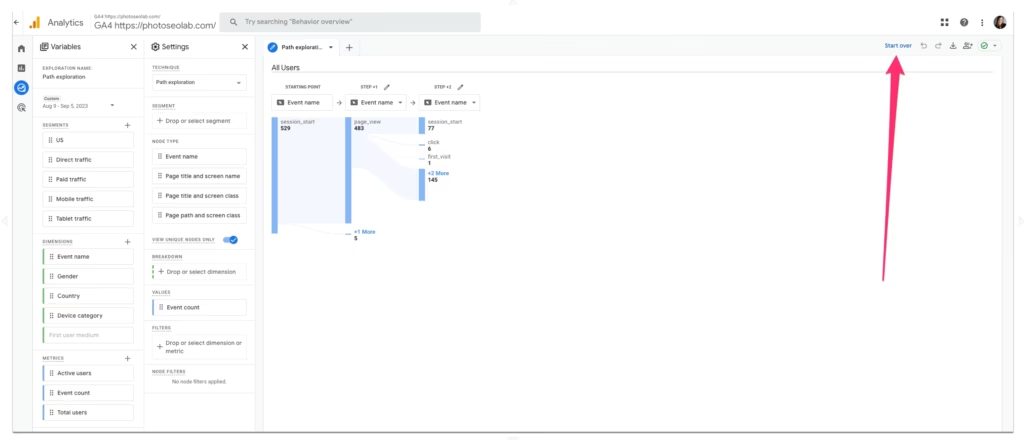
When this page opens, a bunch of default things will be selected. We’re going to click ‘start over‘
Step 4
Click on ‘ending point‘
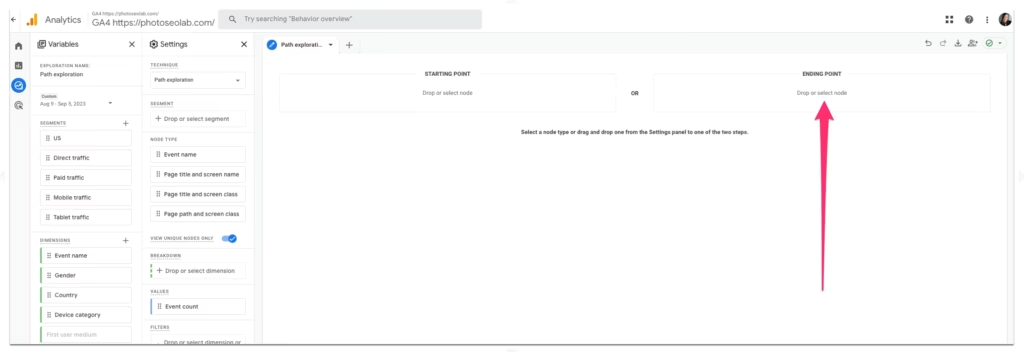
Step 5
When you click on ‘ending point‘, a bunch of option appear. Choose the 2nd option, ‘page title and screen name‘.
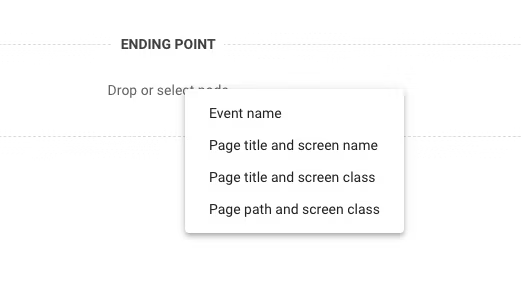
Step 6
A drop down list will appear. Search for your ‘thank you‘ page that clients arrive at after completing the contact form. You may need to click on ‘load more‘ to find it. In this example, we’re going to select the appointments page instead as this site doesn’t have a thank you page setup.
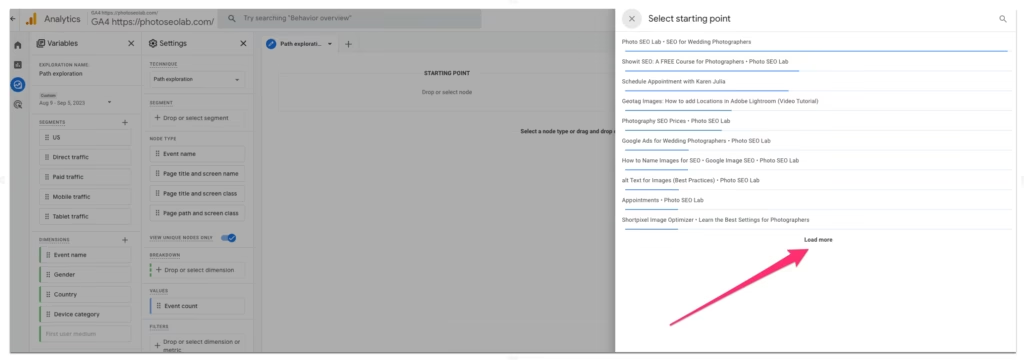
Step 7
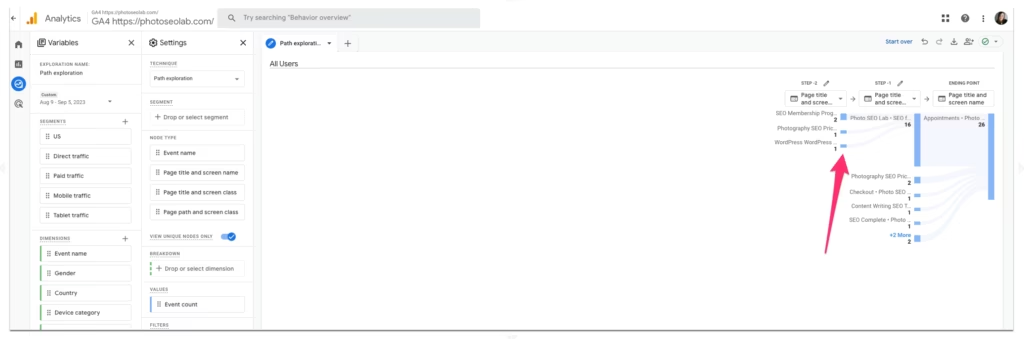
A report will be created which will look like the report below. In this, we’re shown the page before the conversion page. Click on the blue line to explore any available previous page info. Once the line goes grey, that indicates you’re at the end of that data journey.
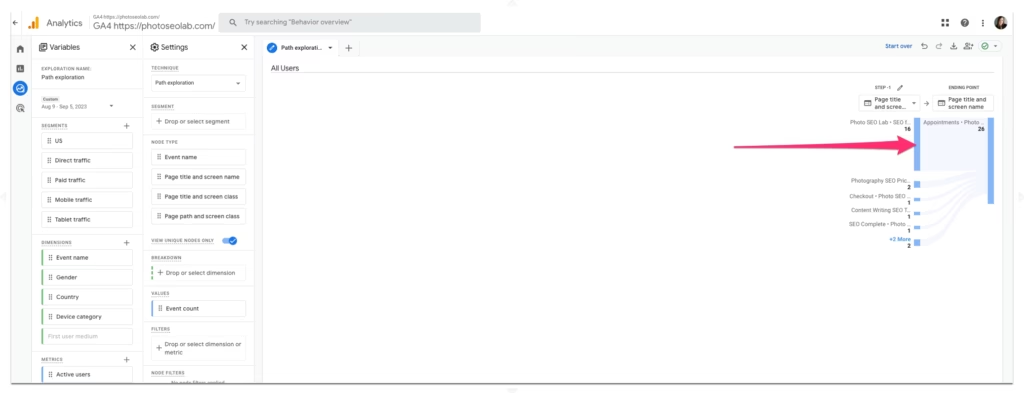
Step 8
Continue clicking on the blue lines to fully explore user behaviour flow.